Google Ads Refund
-
Google Ads Refund Reporting with AI Antifraud
Fraudulent Click Detection:
AI Antifraud continuously monitors your Google Ads traffic to identify fraudulent or low-quality clicks.
Compliance with Google Requirements:
All reports are generated in full compliance with Google’s specifications for low-quality click evidence.
Refund Submission Rules:
Refund requests can be submitted once every 2 months, according to Google Ads policies.
AI Antifraud provides structured reports optimized for submission through the Google Ads Refund Request form.
Report Generation:
Up to 3 reports can be created within 10 minutes.
Reports are available for download in the required format.
Each report can be directly attached to the Google Ads Refund Request in your advertiser account.
Also, each Report is automatically sent to your email address, which is specified during registration (login)
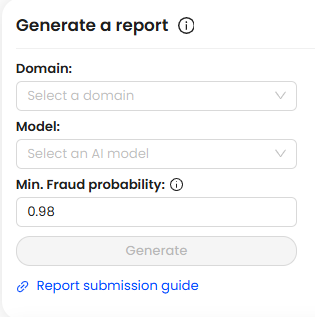
To generate a report:
- Select your domain from the list
- Select your basic or Custom AI Model from the list
- Specify the minimum value of the probability of fraud, which should be in the range from 0.9 to 0.99 (0.98 is recommended)
- Click the "Generate" button
All reports
The table below will display all your Reports for Google Ads Refund and basic information about them, such as:
- Domain (for which domain was generated)
- Created on (report generation)
- Min. Fraud probability (the minimum value of the probability of fraud)
- Date range (for which period was the Report generated)
- Model (name of the AI model for which the report was generated)
- Status (success, failed or in progress)
- Download (here you can download the report for uploading to the form in Google Ads Dashboard)

Refund GA form
After generating the report, you need to fill out the Refund GA form at URL:https://support.google.com/google-ads/contact/click_quality?athuser=7 and attach this report to the form. All instructions for filling out the form are described below.
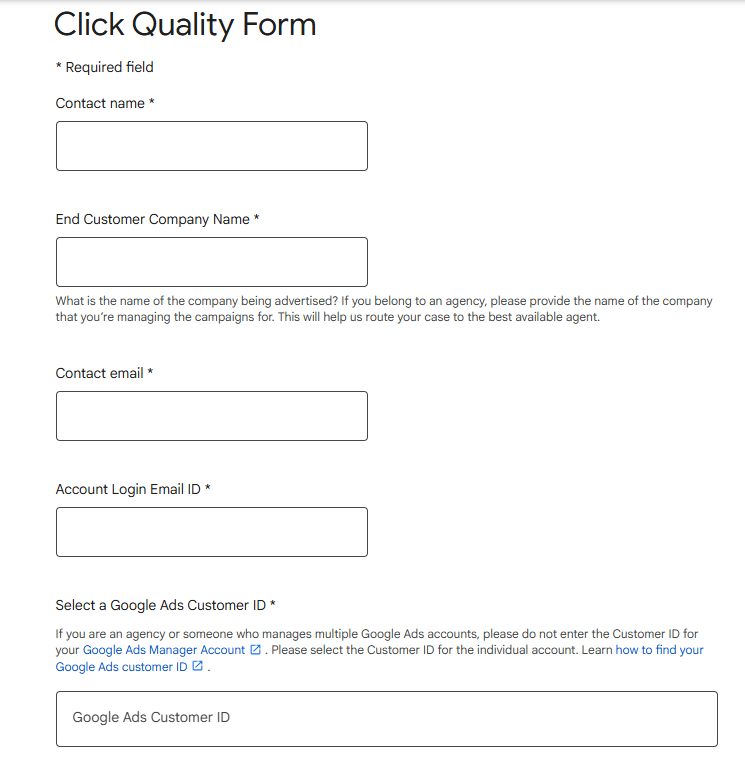
Contact Information and Google Ads Account Details
Fill out the following fields:
- Contact Person / Company
- Enter the name of the contact person or the company submitting the request
- Company / Business Unit / Subcompany Name
- Specify the name of the company being advertised. If you manage campaigns for a specific division, brand, or subsidiary, enter that name
- Contact Email Address
- Enter the email address that should be used for communication regarding the refund request
- Google Account Email
- Enter the email address used to sign in to the Google Ads account
- Google Ads Customer ID (CID)
- Select the appropriate Google Ads account and confirm the Customer ID associated with the account for which the refund request is being submitted
Note: Make sure to choose the correct Google Ads account, especially if multiple accounts are available under the same login.
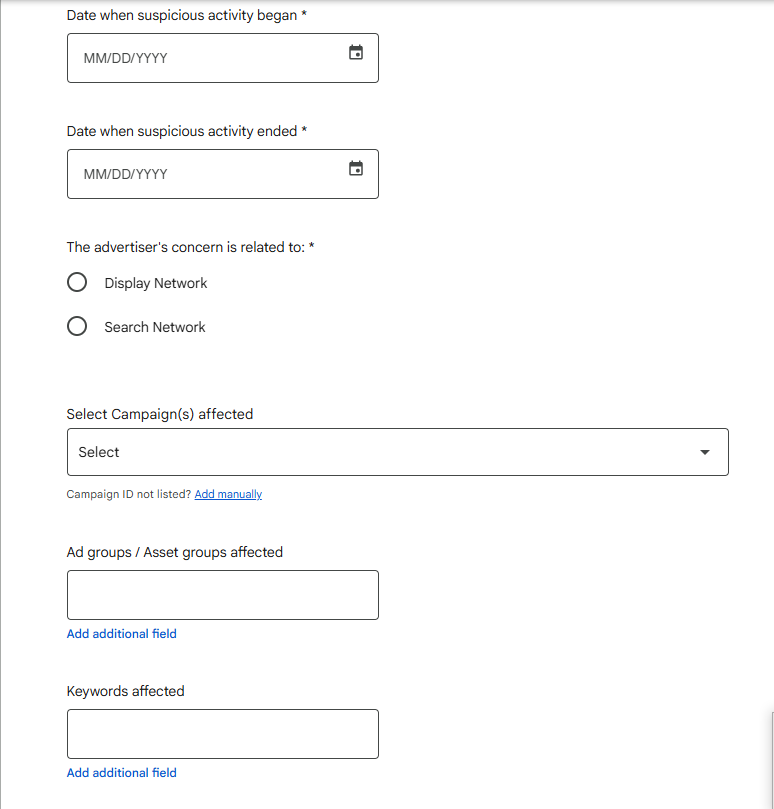
Suspicious Activity Timeframe and Affected Campaigns
Complete the following fields:
- Suspicious Activity Start Date
- Select the start date of the period during which fraudulent or invalid traffic was detected
- Suspicious Activity End Date
- Select the end date of the period affected by the suspicious activity
- Affected Campaigns
- Specify the campaigns where fraudulent traffic was identified. If multiple campaigns were impacted or the issue applies to the entire account, enter ALL
- Affected Ad Groups
- Enter the names of the affected ad groups. If the issue is not limited to specific ad groups, enter ALL
- Affected Keywords (Optional)
- List the keywords associated with the suspicious traffic, if known. This field is optional and may be left blank if no specific keywords have been identified
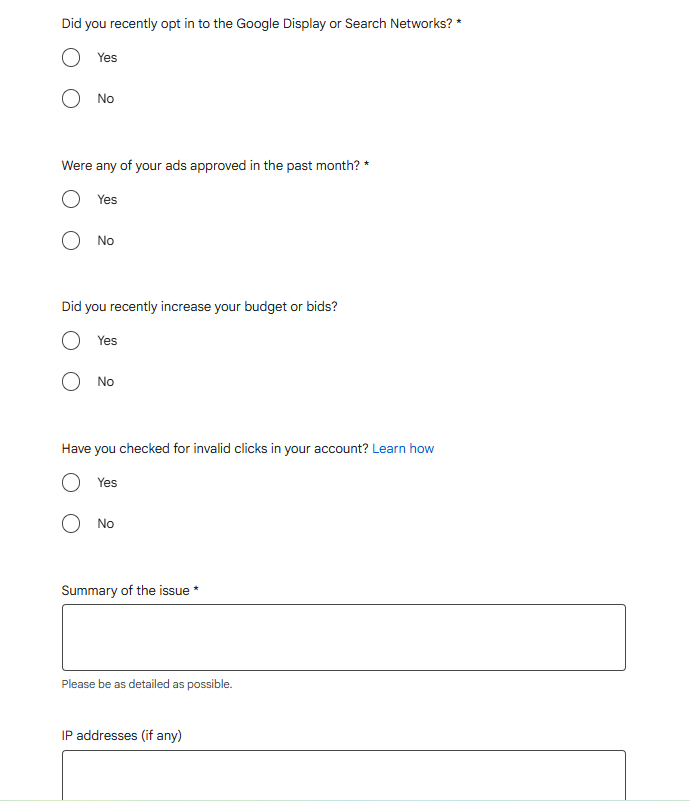
Additional Information and Issue Description
Complete the following fields:
- Have you recently enabled ads on the Google Search Network or Display Network?
- Were any of your ads approved within the last month?
- Have you recently increased your budget or bids?
- Problem Description
- IP Addresses (if available)
Select Yes (always choose Yes)
This field is optional. Select the appropriate answer if applicable
Select Yes (always choose Yes)
Provide a detailed explanation of the issue and indicate that your business has been affected by fraudulent traffic and invalid clicks. Mention that you have identified suspicious activity and are requesting a review and refund for invalid traffic
Example text:
We have identified a significant amount of fraudulent and invalid traffic affecting our Google Ads campaigns. The suspicious activity has resulted in abnormal click patterns and unnecessary advertising costs. We have attached supporting reports and data for further investigation and kindly request that Google review the account and issue any applicable credits for invalid traffic.If IP addresses are included in an attachment or report, enter: Included in the attached file.
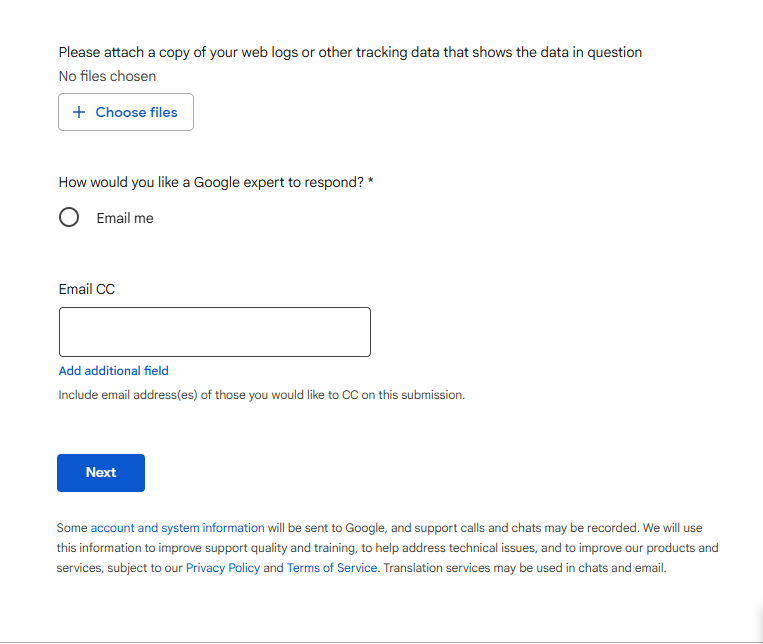
Attach Logs and Set the Response Method
- Upload the log file
- The report should include the following fields:
- Select the response method
- ✅ “Send me an email” Add your email address and copy our email to antifraud@scroogefrog.com so that our support team can see the results of submitting a Refund GA form application.
- Submit the form
In the “Attach web logs or other tracking data” section, upload the file containing the traffic data and parameters used in the investigation
IP Address (ip)
URL (url)
Event Timestamp (time_add)
User Agent (user_agent)
Operating System (os)
Browser (browse)
Campaign ID (id_campaign)
Country (country_name)
City (city_name)
Internet Service Provider (provider_name)
ZIP / Postal Code (zip_code)
Under “How would you prefer to receive a response from a Google specialist?”, select:
In the “CC (email addresses)” field, enter the email address where you would like to receive a copy of Google's response.
Example: antifraud@scroogefrog.com
You may add additional email addresses if multiple team members need to receive updates regarding the refund request.
After verifying all information, click “Submit” to send the refund request to Google